These five steps should be done if you get any errors, or print jobs just not printing, when running a Data Automation print job. These steps should also be done if you update Data Automation software. If your Data Automation label templates or your Watch and Success folders are located on a shared network drive, be sure to follow the instructions in Step 2. Data Automation will work on Windows Serves: 2016, 2019 and 2022.
Before you Begin
This article assumes the user has performed the required steps to configure a Data Automation channel: Data Automation - 5 Steps To Set Up And Configure Data Automation.
Issues & Symptoms
- Data Automation was updated.
- The Data Automation Service will not run.
- The print job appears to print in Data Automation, but nothing is printed.
- "Could not find a part of the path 'network drive path' - either the drive being setup has been mapped with the drive letter rather than the UNC network drive path or the Data Automation Windows service is misconfigured.
- "Invalid URI: the format of the URI could not be determined" is noted in Data Automation.log file. This indicates the app is unable to find the location of a needed file or folder (label template, datasource such as csv file or watch folder) on a network drive because it is missing the protocol prefix, usually the two slashes preceding the server name: \\
- "License Server Error 500" - results from using a local account login instead of a domain account login.
Resolution
Please follow the steps below for successful Data Automation configuration:
- Modify the Brady Data Automation Service - Enter a current ADMIN User ID and Password.
- Launch Services.msc using Run As Admin, then navigate to Brady Data Automation, right click Properties, select the Log On tab.
Note: The credentials must be for a user account with domain or elevated admin rights or a service account. If print driver settings (cut, speed, etc) are not working, make sure that the end users (those saving or exporting data to watch folder) have modify permissions for the service account.
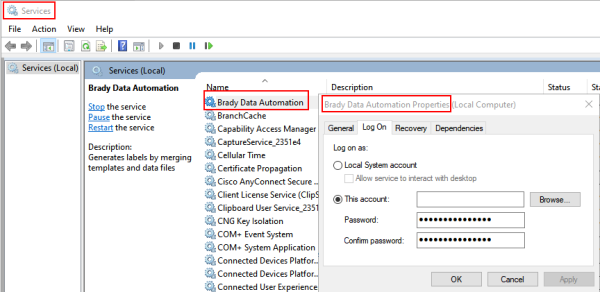
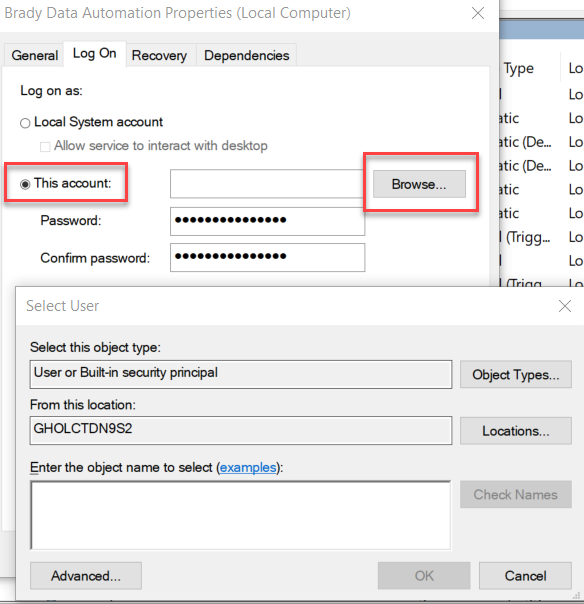
- Change the radio button from Local System account to This account: Use the Browse button to search for and select the appropriate user, then enter the password.
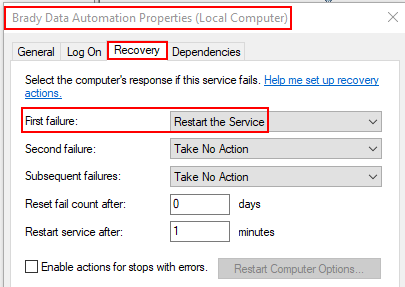
- While still in the Brady Data Automation Servies properties, click on the Recovery tab, and in First Failure options, select Restart the Service, click Apply then OK.
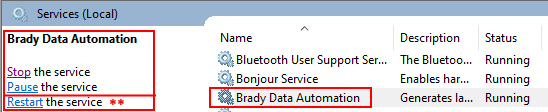
- The service will need to be restarted after the user is changed.
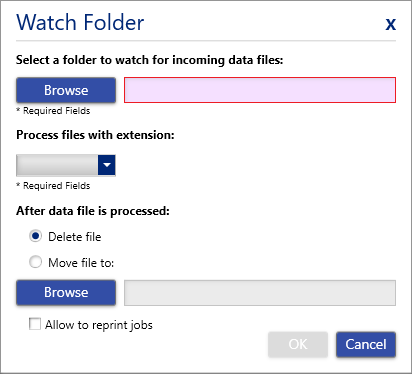
- Configure the Watch Folder in Data Automation.
Each channel will need its own Watch Folder. You can create the watch folder(s) on a network drive so data is backed up and users on different PCs can drop the text file (csv or txt) into the watch folder(s). Browse to the the location of the watch folder, enter what type of data file extension will be used, and what you want done to the files after they are used to populate the template and print.
- Set Rights to the Data Automation Folder.
- Navigate to C:\ProgramData\Brady Corp, right click the Data Automation folder, select Properties.
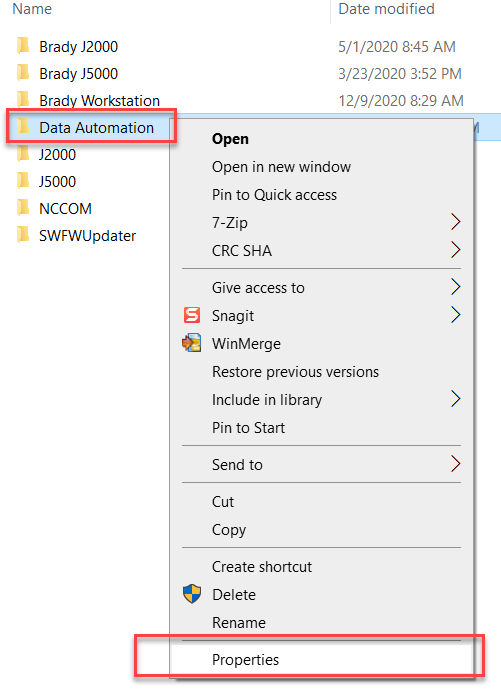
Make sure the ownership of this folder is set to the User Account that has access to the network drive:
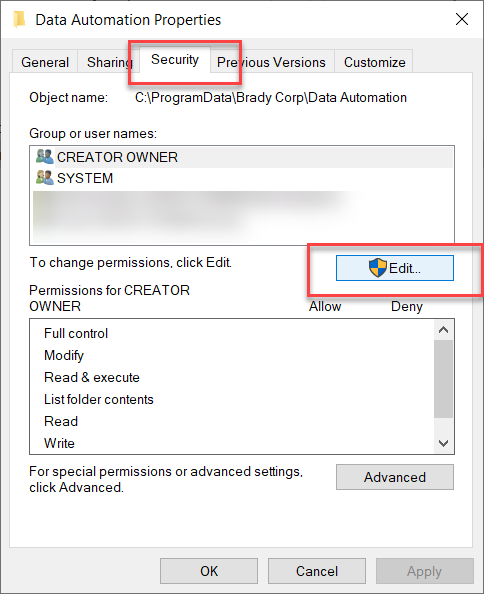
- Select the Security tab and click Edit.
- Click Add, Add the user account that you used when modifying the Data Automation service in Step 1.
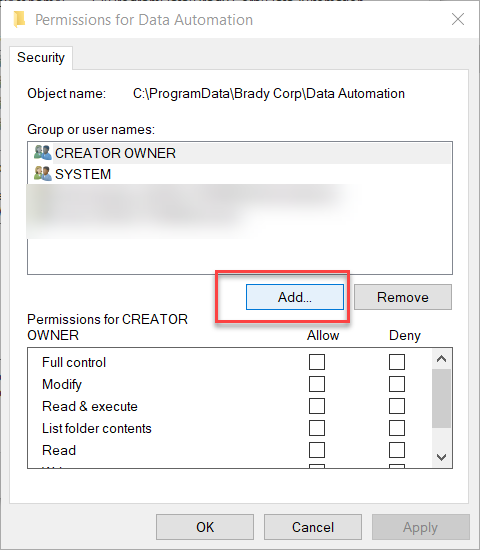
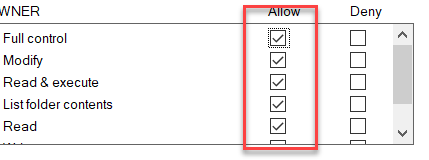
- Check all the allow boxes except for Special Permissions. Click Apply.
- Ensure your Windows Print Driver for your printer has special permissions enabled: Printer Drivers - Enable Driver Security Permissions.
- Verify User is selected for the Paper Size in the Driver. Driver Page Size Settings for Brady Software vs 3rd Party Software. If the page size is set to a specific page size, it will cause a different rotation or missing data on the label.
- Cut Options: Settings must be configured in both the driver and the software.
- If you edit the template in any way (open and save it in Custom Designer or Print Partner), be sure to do the following:
- Open the Data Automation app.
- Click the channel on the left to select it.
- Click the icon on the far right (white square in a white circle) to stop it.
- Click start to restart the channel.
Please contact Brady Technical Support if you are still unable to get your service to run after properly configuring your Watch Folder on the shared network drive.
Related information