Body | Issue/SymptomsAfter configuring a channel in Data Automation, jobs are not printing to the designated printer. Troubleshooting
- First, confirm you have configured your Data Automation channel correctly: Data Automation - 5 Steps To Set Up And Configure Data Automation.
Note: When setting up your Data Automation channel, make sure the correct printer driver is selected from the list. It is common for Windows to create copy drivers, so multiple options may exist for the same printer model.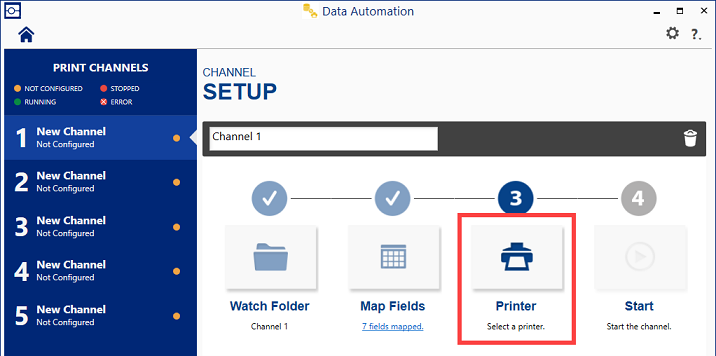
- Review this article if your jobs folder is on a shared network drive: Brady Workstation - Data Automation - How to Configure the Server (domain login, rights) and Watch Folder
- Check the printer's print queue for stuck or errored jobs. This can be done by navigating to Control Panel > View Device and Printers > Right click the printer driver and select "see what's printing". Use these additional resources to troubleshoot printer connectivity issues:
- Power cycle the printer.
Related information
|
|
|---|